# toptext editing: [#mode mode] | [#movement movement] | [#selecting-deleting selecting] | [#selecting-deleting deleting] | [#files-buffers files] | [#files-buffers buffers] | [#minibuffer minibuffer] | [#ido ido] | [#history history] | [#searching-replacing searching] | [#searching-replacing replacing] | [#sorting sorting] | [#counting counting] | [#case case] | [#indentation indentation] | [#indentation rectangles] | [#spelling spelling] | [#panes panes] | [#macros macros] | [#ascii-art ascii art] | [#org org] | [#intl input methods] | [#intl encodings] | [#help help]
dev tools: [#browse-files browse files] | [#shell shell] | [#grep grep] | [#tags tags] | [#diff diff] | [#git git] | [#compile compile] | [#debug debug] | [#lisp-interaction lisp interaction] | [#syntax-highlighting syntax highlighting]
programming: [#variables variables] | [#arith-logic arithmetic and logic] | [#str strings] | [#list lists] | [#dict dictionaries] | [#func functions] | [#exec-ctrl execution control] | [#lib-mod libraries and namespaces]
other topics: [#doc documentation] | [#terminology terminology] | [#line-editors line editors] | [#bindings-other-apps bindings in other apps]
||||||||||~ # startup[#startup-note startup]||
||~ ||~ [#vim vim]||||~ [#emacs emacs]||~ [#nano nano]||
||# launch[#launch-note launch] _
@< >@||$ vim||||$ emacs||$ nano||
||# open-file-cmdline[#open-file-cmdline-note open file] _
@< >@||$ vim ##gray|//file//##||||$ emacs ##gray|//file//##||$ nano ##gray|//file//##||
||# open-file-line[#open-file-line-note open file on line 100] _
@< >@||$ vim +100 ##gray|//file//##||||$ emacs +100 ##gray|//file//##||$ nano +100 ##gray|//file//##||
||# open-file-column-line[#open-file-column-line-note open file on column 20 of line 100] _
@< >@||$ vim +100 -c ‘normal 20|’ ##gray|//file//##||||$ emacs +100:20 ##gray|//file//##||$ nano +100,20 ##gray|//file//##||
||# open-file-read-only-cmdline[#open-file-read-only-cmdline-note open file in read-only mode] _
@< >@||$ vim -R ##gray|//file//##|||| ||$ nano -v ##gray|//file//##||
||# open-multiple-files[#open-multiple-files-note open multiple files] _
@< >@||$ vim ##gray|//file1 file2 …//## _
_
##gray|//only first file is displayed; use// :bn //and// :bp //to change buffers;// :ls //to list buffers//##||||$ emacs ##gray|//file1 file2 …//## _
_
##gray|//window is split into two panes; if more than two files, one of the panes is a buffer list; use// C-x o //to switch panes; use// C-x b //to switch buffers//##||$ nano ##gray|//file1 file2 …//## _
_
##gray|//only first file is displayed; use// M-> //and// M-< //to change buffers//##||
||# open-dir-cmdline[#open-dir-cmdline-note open directory] _
@< >@||$ vim ##gray|//dir//##||||$ emacs ##gray|//dir//##|| ||
||# startup-file[#startup-file-note startup file]||/.vimrc||||/.emacs _
~/.emacs.el _
/.emacs.d/init.el||/.nanorc||
||# skip-startup-file[#skip-startup-file-note skip startup file] _
@< >@||$ vim -u NONE||||$ emacs -q||$ nano -I||
||||||||||~ # text-editing[#text-editing-note text editing]||
||~ ||~ vim||~ emacs||~ emacs||~ nano||
||# show-version[#show-version-note show version] _
@< >@||:version|| ||M-x emacs-version|| ||
||# redraw-display[#redraw-display-note redraw display] _
@< >@||C-l|| ||M-x redraw-display|| ||
||# insert-x[#insert-x-note insert ‘x’]||##gray|//insert mode://## _
x||x|| ||x||
||# insert-unicode-point[#insert-unicode-point-note insert by unicode point]||##gray|//insert mode://## _
C-v u 03c0||C-x 8 RET 03c0 RET||M-x ucs-insert 03c0 RET|| ||
||# insert-unicode-name[#insert-unicode-name-note insert by unicode name] _
@< >@|| ||C-x 8 RET greek small letter pi RET||M-x ucs-insert greek small letter pi RET|| ||
||# get-unicode-point[#get-unicode-point-note get unicode point] _
@< >@|| || ||M-x describe-char|| ||
||# cancel[#cancel-note cancel] _
@< >@||ESC||C-g||M-x keyboard-quit|| ||
||# insert-control[#insert-control-note insert control character] _
@< >@||C-v ##gray|//char//##||C-q ##gray|//char//##||M-x quoted-insert ##gray|//char//##||M-v||
||# insert-newline[#insert-newline-note insert newline] _
@< >@||C-v RET||C-q C-j|| || ||
||# auto-complete[#auto-complete-note auto complete]||C-n _
C-p||M-/||M-x hippie-expand|| ||
||# repeat-n[#repeat-n-note repeat next command n times] _
@< >@||##gray|//n//##||C-u ##gray|//n//##||M-x universal-argument ##gray|//n//##|| ||
||# repeat-4[#repeat-4-note repeat 4 times] _
@< >@||4||C-u||M-x universal-argument|| ||
||# repeat-16[#repeat-16-note repeat 16 times] _
@< >@||16||C-u C-u|| || ||
||# font-size[#font-size-note font size] _
@< >@||##gray|//use menu or OS//##||C-x C-=, C-x C@@–@@||M-x text-scale-adjust|| ||
||# exit[#exit-note exit] _
@< >@||:q||C-x C-c||M-x save-buffers-kill-terminal||C-x||
||# save-exit[#save-exit-note save changes and exit]||ZZ _
:wq||C-x C-s C-x C-c||M-x save-buffer _
M-x save-buffers-kill-terminal|| ||
||# discard-exit[#discard-exit-note discard changes and exit] _
@< >@||:q!|| ||M-x kill-emacs|| ||
||||||||||~ # mode[#mode-note mode]||
||~ ||~ vim||~ emacs||~ emacs||~ nano||
||# change-mode[#change-mode-note change mode]||##gray|//normal to insert://## _
a, i, o, O _
_
##gray|//back to normal://## _
ESC|| ||M-x ##gray|//mode-name//##|| ||
||# show-mode[#show-mode-note show mode] _
@< >@||##gray|//insert, visual, select, and replace indicated on bottom line//##||##gray|//displayed on mode line//##||M-: major-mode|| ||
||# mode-doc[#mode-doc-note mode documentation] _
@< >@|| ||C-h m||M-x describe-mode|| ||
||# set-key-binding[#set-key-binding-note set key binding] _
@< >@||:map ##gray|//key//## ##gray|//cmd//##|| ||M-x global-set-key RET ##gray|//key//## ##gray|//cmd//##|| ||
||# enter-insert[#enter-insert-note enter insert mode] _
##gray|//before cursor, after cursor//##||i _
a|| || || ||
||# enter-insert-adjacent-line[#enter-insert-adjacent-line-note enter insert mode on adjacent line] _
##gray|//above current line, below current line//##||o _
O|| || || ||
||# ex-mode[#ex-mode-note enter and exit ex mode]||Q _
:vi|| || || ||
||||||||||~ # movement[#movement-note movement]||
||~ ||~ vim||~ emacs||~ emacs||~ nano||
||# point-location[#point-location-note location of point] _
@< >@||C-g||C-x =||M-x what-cursor-position||C-c||
||# swap-point-mark[#swap-point-mark-note swap point and mark]||##gray|//visual mode://## _
o||C-x C-x||M-x exchange-point-and-mark|| ||
||# goto-line[#goto-line-note goto line]||42G _
:42||M-g M-g||M-x goto-line||C-_ _
M-g||
||# goto-char[#goto-char-note goto character] _
@< >@||:goto ##gray|//n//##|| ||M-x goto-char|| ||
||# down[#down-note down]||j _
↓||C-n _
↓||M-x next-line||C-n _
↓||
||# up[#up-note up]||k _
↑||C-p _
↑||M-x previous-line||C-p _
↑||
||# forward[#forward-note forward]||i _
→||C-f _
→||M-x forward-char _
M-x right-char||C-f _
→||
||# backward[#backward-note backward]||h _
←||C-b _
←||M-x backward-char _
M-x left-char||C-b _
←||
||# forward-word[#forward-word-note forward beginning of word] _
@< >@||w ##gray|//bigger word://## W|| || ||C-SPACE||
||# forward-word-end[#forward-word-end-note forward end of word] _
@< >@||e ##gray|//bigger word://## E||M-f||M-x forward-word|| ||
||# backward-word[#backward-word-note backward word] _
@< >@||b ##gray|//bigger word://## B||M-b||M-x backward-word||M-SPACE||
||# beginning-line[#beginning-line-note beginning of line] _
@< >@||0||C-a||M-x move-beginning-of-line||C-a||
||# beginning-line-nonblank[#beginning-line-nonblank-note first nonblank character of line] _
@< >@||^||M-m||M-x back-to-indentation|| ||
||# end-line[#end-line-note end of line] _
@< >@||$||C-e||M-x move-end-of-line||C-e||
||# prev-sentence[#prev-sentence-note previous sentence] _
@< >@||(||M-a||M-x backward-sentence|| ||
||# next-sentence[#next-sentence-note next sentence] _
@< >@||)||M-e||M-x forward-sentence|| ||
||# start-paragraph[#start-paragraph-note start of paragraph] _
@< >@||{||M-{ _
C-↑||M-x backward-paragraph||M-(||
||# end-paragraph[#end-paragraph-note end of paragraph] _
@< >@||}||M-} _
C-↓||M-x forward-paragraph||M-)||
||# matching-paren[#matching-paren-note matching paren, bracket, or brace]||%||C-M-n _
C-M-p||M-x forward-list _
M-x backward-list||M-]||
||# column-20[#column-20-note column 20] _
@< >@||20 | ||M-g TAB 20||M-x move-to-column RET 20||C-_ ,20||
||# page-down[#page-down-note page down] _
@< >@||C-f||C-v||M-x scroll-up||C-v||
||# page-up[#page-up-note page up] _
@< >@||C-b||M-v||M-x scroll-down||C-y||
||# half-page-down[#half-page-down-note half page down] _
@< >@||C-d||M-r M-r M-r C-l|| || ||
||# half-page-up[#half-page-up-note half page up] _
@< >@||C-u||M-r M-r C-l|| || ||
||# page-other-window[#page-other-window-note page other window] _
@< >@|| ||C-M-v||M-x scroll-other-window|| ||
||# page-right[#page-right-note page right] _
@< >@|| ||C-x <|| || ||
||# page-left[#page-left-note page left] _
@< >@|| ||C-x >|| || ||
||# center-window[#center-window-note center window] _
@< >@||zz||C-l||M-x recenter-top-bottom|| ||
||# center-point[#center-point-note center point] _
@< >@||M _
H _
L||M-r||M-x move-to-window-line-top-bottom|| ||
||# beginning-doc[#beginning-doc-note beginning of document] _
@< >@||1G _
:1||M-<||M-x beginning-of-buffer||M-||
||# end-doc[#end-doc-note end of document] _
@< >@||G _
:$||M->||M-x end-of-buffer||M-/||
||||||||||~ # selecting-deleting[#selecting-deleting-note selecting and deleting]||
||~ ||~ vim||~ emacs||~ emacs||~ nano||
||# mark[#mark-note mark]||v _
V||C-SPACE _
C-@||M-x set-mark-command||C-^ _
M-a||
||# mark-rectangular-region[#mark-rectangular-region-note mark rectangular region]||C-v|| || || ||
||# mark-buffer[#mark-buffer-note mark whole buffer]||ggVG|| ||M-x mark-whole-buffer|| ||
||# del-next-char[#del-next-char-note delete next char]||x||C-d||M-x delete-char||C-d||
||# del-prev-char[#del-prev-char-note delete previous char]||X||DEL||M-x delete-backward-char||C-h||
||# del-next-word[#del-next-word-note delete next word]||dw||M-d||M-x kill-word|| ||
||# del-prev-word[#del-prev-word-note delete previous word]|| ||M-DEL||M-x backward-kill-word|| ||
||# delete-to-char[#delete-to-char-note delete to char]|| ||M-z||M-x zap-to-char|| ||
||# del-line[#del-line-note delete to end of line]||d$ _
D||C-k||M-x kill-line|| ||
||# delete-line[#delete-line-note delete line]||dd||C-a C-k C-k|| ||C-k||
||# delete-newline[#delete-newline-note delete newline]||##gray|//point on line://## _
J||##gray|//point on line://## _
C-e C-d _
##gray|//point on following line://## _
C-a DEL|| || ||
||# copy-line[#copy-line-note copy line] _
_
##gray|//vim calls this yank//##||yy|| || || ||
||# kill-region[#kill-region-note kill region]||##gray|//visual mode://## _
d||C-w||M-x kill-region|| ||
||# copy-region[#copy-region-note copy region]||##gray|//visual mode://## _
y||M-w||M-x kill-ring-save||M-a _
M-6||
||# paste[#paste-note paste] _
_
##gray|//emacs calls this yank//##||p _
P||C-y||M-x yank||C-u||
||# replace-paste-prev-copy[#replace-paste-prev-copy-note replace paste with previous copy]|| ||M-y||M-x yank-pop|| ||
||# paste-line-adjacent-current[#paste-line-adjacent-current-note paste line below/above current line]||##gray|//if buffer populated by// dd //or// yy:## _
p _
P|| || || ||
||# delete-lines-regex[#delete-lines-regex-note delete lines matching regexp]|| || ||M-x flush-lines|| ||
||# delete-lines-not-matching-regex[#delete-lines-not-matching-regex-note delete lines not matching regexp]|| || ||M-x keep-lines|| ||
||# system-copy[#system-copy-note system copy]||C-c ##gray|//or//## ⌘c || ||M-x clipboard-kill-ring-save|| ||
||# system-paste[#system-paste-note system paste]||C-v ##gray|//or//## ⌘v|| ||M-x clipboard-yank|| ||
||# system-cut[#system-cut-note system cut]|| || ||M-x clipboard-kill-region|| ||
||||||||||~ # files-buffers[#files-buffers-note files and buffers]||
||~ ||~ vim||~ emacs||~ emacs||~ nano||
||# pwd[#pwd-note show current directory] _
@< >@||:!pwd|| ||M-! pwd|| ||
||# cd[#cd-note change current directory] _
@< >@||:cd ##gray|//dir//##|| ||M-x cd|| ||
||# open-file[#open-file-note open file]||:e ##gray|//path//##||C-x C-f||M-x find-file _
M-x ido-find-file||C-r||
||# open-file-read-only[#open-file-read-only-note open file read only] _
@< >@||:view ##gray|//path//##||C-x C-r||M-x find-file-read-only|| ||
||# buffer-read-only[#buffer-read-only-note toggle buffer read only]|| || ||M-x read-only-mode|| ||
||# show-buffer-file-name[#show-buffer-file-name-note show buffer file name] _
@< >@||:echo bufname(“%”)|| ||M-: buffer-file-name|| ||
||# list-buffers[#list-buffers-note list buffers]||:ls||C-x C-b||M-x list-buffers _
M-x buffer-menu|| ||
||# switch-buffer[#switch-buffer-note switch buffer]||:b ##gray|//bufnum//## _
:bprev _
:bnext||C-x b||M-x switch-to-buffer _
M-x ido-switch-buffer||M-< _
M->||
||# diff-buffer-file[#diff-buffer-file-note diff buffer and file] _
@< >@||:w !diff % -|| ||M-x diff-buffer-with-file|| ||
||# save-buffer[#save-buffer-note save buffer] _
@< >@||:w||C-x C-s||M-x save-buffer||C-o ENTER||
||# save-all-buffers[#save-all-buffers-note save all buffers] _
@< >@||:wa||C-x s||M-x save-some-buffer|| ||
||# revert-buffer[#revert-buffer-note revert buffer] _
@< >@||:e!|| ||M-x revert-buffer|| ||
||# write-buffer-to-different-file[#write-buffer-to-different-file-note write buffer to different file]||:w ##gray|//path//##||C-x C-w||M-x write-file _
M-x ido-write-file||C-o ##gray|//path//##||
||# write-region-to-file[#write-region-to-file-note write region to file] _
@< >@||:w ##gray|//path//## _
##gray|//Don’t remove the// ‘<,’> //vim inserts after the colon.//##|| ||M-x write-region|| ||
||# insert-file[#insert-file-note insert file]||:r||C-x i||M-x insert-file _
M-x ido-insert-file||C-r||
||||||||||~ # minibuffer[#minibuffer-note minibuffer]||
||~ ||~ vim||~ emacs||~ emacs||~ nano||
||# enter-minibuffer[#enter-minibuffer-note enter minibuffer]||:||##gray|//use command which prompts for an argument//##|| || ||
||# move-cursor[#move-cursor-note move cursor] _
##gray|//left, right//##||← _
→|| || || ||
||# delete-prev-char[#delete-prev-char-note delete previous char]||DEL||DEL|| || ||
||# delete-prev-word[#delete-prev-word-note delete previous word]||C-w||M-DEL||backward-kill-word|| ||
||# begin-cmd-line[#begin-cmd-line-note go to beginning of line]||C-b||C-a||move-beginning-of-line|| ||
||# end-cmd-line[#end-cmd-line-note go to end of line]||C-e||C-e||move-end-of-line|| ||
||# clear-buf[#clear-buf-note clear buffer]||C-u||C-a C-k|| || ||
||# cancel-cmd[#cancel-cmd-note cancel command]||ESC _
C-c||C-g||abort-recursive-edit|| ||
||# complete[#complete-note complete]||TAB||TAB||minibuffer-complete|| ||
||# display-completitions[#display-completions-note display completions]||C-d||?||minibuffer-completion-help|| ||
||# select-completions-buf[#select-completions-buf-note select completions buffer]|| ||M-v||switch-to-completions|| ||
||# show-history[#show-history-note show history]||:history|| || || ||
||# go-back-history[#go-back-history-note go back in history]|| ||M-p||previous-history-element|| ||
||# go-forward-history[#go-forward-history-note go forward in history]|| ||M-n||next-history-element|| ||
||||||||||~ # ido[#ido-note ido]||
||~ ||~ vim||~ emacs||~ emacs||~ nano||
||select first match|| ||RET||ido-exit-minibuffer|| ||
||select input string|| ||C-j||ido-select-text|| ||
||remove directory from input string|| ||DEL||ido-delete-backward-updir|| ||
||put first match at end of list|| ||C-s _
←||ido-prev-match|| ||
||put last match at front of list|| ||C-r _
→||ido-next-match|| ||
||cycle through work directory history _
##gray|//next, previous//##|| ||M-n _
M-p||ido-next-work-directory _
ido-prev-work-directory|| ||
||remove current directory from work directory history|| ||M-k||ido-forget-work-directory|| ||
||goto root directory|| ||@@//@@|| || ||
||goto home directory|| ||~/|| || ||
||toggle between substring and prefix matching|| ||C-p||ido-toggle-prefix|| ||
||show matches in separate buffer|| ||?||ido-completion-help|| ||
||fall back to switch-buffer|| ||C-b|| || ||
||fall back to find-file|| ||C-f|| || ||
||open in dired|| ||C-d|| || ||
||kill buffer or delete file|| ||C-k||ido-delete-file-at-head|| ||
||create directory|| ||M-m||ido-make-directory|| ||
||||||||||~ # history[#history-note history]||
||~ ||~ vim||~ emacs||~ emacs||~ nano||
||# repeat[#repeat-note repeat] _
@< >@||.||C-x z||M-x repeat|| ||
||# undo[#undo-note undo]||u||C-/ _
C-_ _
C-x u||M-x undo||##gray|//none or//## M-u ##gray|//when invoked with// {{-u}} //flag//##||
||# redo[#redo-note redo]||C-r||##gray|//move cursor to break undo chain, then//## _
C-x u|| ||##gray|//none or//## M-e ##gray|//when invoked with// {{-u}} //flag//##||
||# undo-last-cmd-not-undone[#undo-last-cmd-not-undone-note undo last command not undone] _
@< >@|| || ||M-x undo-only|| ||
||# goto-version[#goto-version-note goto version] _
@< >@||:undo 10|| || || ||
||# goto-prev-version[#goto-prev-version-note goto previous version] _
##gray|//1 version ago, 5 versions ago//##||g- _
5g-|| || || ||
||# goto-next-version[#goto-next-version-note goto next version] _
##gray|//1 version hence, 5 versions hence//##||g+ _
5g+|| || || ||
||# go-back-in-time[#go-back-in-time-note go back in time] _
##gray|//seconds, minutes, days, hours//##||:earlier 10s _
:earlier 10m _
:earlier 10h _
:earlier 10d|| || || ||
||# go-forward-in-time[#go-forward-in-time-note go forward in time] _
##gray|//seconds, minutes, days, hours//##||:later 10s _
:later 10m _
:later 10h _
:later 10d|| || || ||
||# goto-saved-version[#goto-saved-version-note goto saved version] _
##gray|//previous, next//##||:earlier lf _
:later lf|| || || ||
||# keystroke-history[#keystroke-history-note keystroke history] _
@< >@|| ||C-h l||M-x view-lossage|| ||
||# undo-branches[#undo-branches-note undo branches] _
@< >@||:undolist|| || || ||
||||||||||~ # searching-replacing[#searching-replacing-note searching and replacing]||
||~ ||~ vim||~ emacs||~ emacs||~ nano||
||# search[#search-note search]||/||C-s||M-x isearch-forward||C-w||
||# repeat-last-search[#repeat-last-search-note repeat last search]||n||C-s|| ||M-w||
||# repeat-last-search-backward[#repeat-last-search-backward-note repeat last search backward]||N||C-r|| || ||
||# search-backwards[#search-backwards-note search backwards]||?||C-r||M-x isearch-backward|| ||
||# next-char-on-line[#next-char-on-line-note next ‘x’ on line]||f x|| || || ||
||# prev-char-on-line[#prev-char-on-line-note previous ‘x’ on line]||F x|| || || ||
||# search-replace[#search-replace-note search and replace]||:%s/##gray|//pat//##/##gray|//repl//##/g|| ||M-x query-replace||C-\ _
M-r||
||# recursive-edit[#recursive-edit-note recursive edit during search and replace]|| ||C-r|| || ||
||# exit-recursive-edit[#exit-recursive-edit-note exit recursive edit]|| ||C-M-c||M-x exit-recursive-edit|| ||
||# search-multiple-buffers[#search-multiple-buffers-note search multiple buffers]|| || ||M-x multi-occur|| ||
||||||||||~ # sorting# counting[#sorting-note sorting and counting]||
||~ ||~ vim||~ emacs||~ emacs||~ nano||
||# sort[#sort-note sort region]||##gray|//visual mode://## _
!sort|| ||M-x sort-lines|| ||
||# numeric-sort[#numeric-sort-note numeric sort]||##gray|//visual mode://## _
!sort -n|| ||M-x sort-numeric-fields|| ||
||# sort-field[#sort-field-note sort by 2nd field] _
##gray|//whitespace delimited//##||##gray|//visual mode://## _
!sort -k 2|| ||C-u 2 M-x sort-fields|| ||
||# sort-fixed-width[#sort-fixed-width-note sort by fixed width column]|| || ||##gray|//place mark at start of field//## _
M-x sort-columns|| ||
||# reverse[#reverse-note reverse]||##gray|//visual mode://## _
!tac|| ||M-x reverse-region|| ||
||# count-lines-words-chars[#count-lines-words-chars-note count lines, words, and chars in document]||!wc %|| ||M-x count-words|| ||
||# count-regex[#count-regex-note count regex matches in region] _
@< >@|| || ||M-x count-matches|| ||
||||||||||~ # case[#case-note case]||
||~ ||~ vim||~ emacs||~ emacs||~ nano||
||# uppercase-word[#uppercase-word-note uppercase word] _
@< >@||gUw _
_
##gray|//uppercase line://## _
gUU||M-u||M-x upcase-word|| ||
||# lowercase-word[#lowercase-word-note lowercase word] _
@< >@||guw _
_
##gray|//lowercase line://## _
guu||M-l||M-x downcase-word|| ||
||# capitalize-word[#capitalize-word-note capitalize word] _
@< >@|| ||M-c||M-x capitalize-word|| ||
||# uppercase-region[#uppercase-region-note uppercase region]||##gray|//visual mode://## _
gU||C-x C-u||M-x upcase-region|| ||
||# lowercase-region[#lowercase-region-note lowercase region]||##gray|//visual mode://## _
gu||C-x C-l||M-x downcase-region|| ||
||# title-case-region[#title-case-region-note title-case region] _
@< >@|| || ||M-x capitalize-region|| ||
||||||||||~ # indentation[#indentation-note indentation and rectangles]||
||~ ||~ vim||~ emacs||~ emacs||~ nano||
||insert tab at beginning of line||@@>>@@|| || || ||
||remove tab from beginning of line||@@<<@@|| || || ||
||indent region||##gray|//visual mode://## _
@@>@@|| || || ||
||syntactically indent line|| ||##gray|//but electric-indent default in 24.4://## _
TAB||M-x indent-for-tab-command|| ||
||syntactically indent region|| || ||M-x indent-region|| ||
||replace tabs in region with spaces|| || ||M-x untabify|| ||
||fill paragraph|| ||M-q||M-x fill-paragraph|| ||
||justify paragraph|| ||C-u M-q|| ||
||fill region|| || ||M-x fill-region|| ||
||remove all whitespace on left of region|| || ||M-x delete-whitespace-rectangle|| ||
||vertically align parts in region matching regexp|| || ||M-x align-regexp|| ||
||prepend string to each line of rectangle|| ||C-x r t RET ##gray|//str//##||M-x string-insert|| ||
||replace each line of rectange with string|| || ||M-x string-rectangle|| ||
||insert blank rectangle||C-v ##gray|//…//## I ##gray|//…//## ESC||C-x r o||M-x open-rectangle|| ||
||delete rectangle||C-v ##gray|//…//## d||C-x r k||M-x kill-rectangle|| ||
||paste rectangle|| ||C-x r y||M-x yank-rectangle|| ||
||clear rectangle|| ||C-x r c||M-x clear-rectangle|| ||
||||||||||~ # spelling[#spelling-note spelling]||
||~ ||~ vim||~ emacs||~ emacs||~ nano||
||spellcheck buffer|| || ||M-x ispell||C-t||
||spellcheck mode||:setlocal spell spelllang=en_us|| ||M-x flyspell-mode|| ||
||||||||||~ # panes[#panes-note panes]||
||~ ||~ vim||~ emacs||~ emacs||~ nano||
||vertical split||:sp ##gray|//path//##||C-x 2||M-x split-window-vertically|| ||
||horizontal split||:vsp ##gray|//path//##||C-x 3||M-x split-window-right|| ||
||close other panes|| ||C-x 1||M-x delete-other-windows|| ||
||close current pane||:q||C-x 0||M-x delete-window|| ||
||move to next pane||C-w h, C-w ← _
C-w l, C-w → _
C-w j, C-w ↑ _
C-w k, C-w ↓||C-x o _
C-x O||M-x other-window _
C-u -1 M-x other-window|| ||
||widen pane|| ||C-x { _
C-x }||M-x enlarge-window-horizontally|| ||
||narrow pane|| ||C-x { _
C-x }||M-x shrink-window-horizontally|| ||
||make pane taller||C-w +|| ||M-x enlarge-window|| ||
||make pane shorter||C-w -|| || || ||
||rotate panes||C-w r|| || || ||
||balance panes|| ||C-x +||M-x balance-windows|| ||
||||||||||~ # macros[#macros-note macros]||
||~ ||~ vim||~ emacs||~ emacs||~ nano||
||start recording macro||q ##gray|//letter//##||C-x (||M-x kmacro-start-macro|| ||
||end recording macro||q||C-x )||M-x kmacro-end-macro|| ||
||run macro||@ ##gray|//letter//##||C-x e||M-x kmacro-end-and-call-macro|| ||
||run macro on each line in region|| ||C-x C-k r||M-x apply-macro-to-region-lines|| ||
||insert counter|| ||C-x C-k C-i||M-x kmacro-insert-counter|| ||
||set counter|| ||C-x C-k C-c||M-x kmacro-set-counter|| ||
||set counter format|| ||##gray|//uses printf-style format specifiers://## _
C-x C-k C-f||M-x kmacro-set-format|| ||
||query user to continue|| ||##gray|//user can respond with: y n q//## _
C-x q|| || ||
||put user in recursive edit|| ||C-u C-x q|| || ||
||||||||||~ # ascii-art[#ascii-art-note ascii art]||
||~ ||~ vim||~ emacs||~ emacs||~ nano||
||ascii art mode|| || ||M-x picture-mode|| ||
||return to original mode|| ||C-c C-c||M-c picture-mode-exit|| ||
||up|| ||C-p||##gray|//available in all modes; bound to C-p only in picture-mode://## _
M-x picture-move-up|| ||
||down|| ||C-n||M-x picture-move-down|| ||
||left|| ||C-b||M-x picture-forward-column|| ||
||right|| ||C-f||M-x picture-backward-column|| ||
||beginning of line|| ||C-a||M-x picture-beginning-of-line|| ||
||beginning of next line|| ||RET||M-x picture-newline|| ||
||move to next non-blank on current line|| ||C-u M-TAB||C-u M-x picture-tab-search|| ||
||move under next non-blank on previous line|| ||M-TAB||M-x picture-tab-search|| ||
||set movement to left after insert|| ||C-c <||M-x picture-movement-left|| ||
||set movement to right after insert|| ||C-c >||M-x picture-movement-right|| ||
||set movement to up after insert|| ||C-c ^||M-x picture-movement-up|| ||
||set movement to down after insert|| ||C-c .||M-x picture-movement-down|| ||
||set movement to up and left after insert|| ||C-c @@`@@||M-x picture-movement-nw|| ||
||set movement to up and right after insert|| ||C-c ‘||M-x picture-movement-ne|| ||
||set movement to down and left after insert|| ||C-c /||M-x picture-movement-sw|| ||
||set movement to down and right after insert|| ||C-c ||M-x picture-movement-se|| ||
||move in direction of movement|| ||C-c C-f||M-x picture-motion|| ||
||move opposite direction of movement|| ||C-c C-b||M-x picture-motion-reverse|| ||
||last nonblank on line|| ||C-e||M-x picture-end-of-line|| ||
||insert blank line|| ||C-o||M-x picture-open-line|| ||
||duplicate line|| ||C-j||M-x picture-duplicate-line|| ||
||replace with space|| ||SPC _
C-d||M-x picture-clear-column|| ||
||move left and replace with space|| ||DEL||M-x picture-backward-clear-column|| ||
||delete char|| ||C-c C-d||M-x picture-delete-char|| ||
||delete to end of line|| ||C-k||M-k picture-clear-line|| ||
||||||||||~ # org[#org-note org]||
||~ ||~ vim||~ emacs||~ emacs||~ nano||
|| || ||||~ outlines|| ||
||cycle list item visibility _
_
##gray|//folded, children, descendants//##|| ||TAB||M-x org-cycle|| ||
||cycle buffer outline visibility _
_
##gray|//overview, contents, all//##|| ||C-u TAB||M-x org-global-cycle|| ||
|| || ||||~ tables|| ||
||create table|| ||C-c @@|@@|| M-x org-table-create-or-convert-from-region|| ||
||align table columns|| ||C-c C-c||M-x org-table-align|| ||
||move column at point right|| ||M-→||M-x org-table-move-column-right|| ||
||move column at point left|| ||M-←||M-x org-table-move-column-left|| ||
||insert row above point|| || ||M-x org-table-insert-row|| ||
||insert column left of point|| || ||M-x org-table-insert-column|| ||
||insert horizontal line under point|| ||C-c -||M-x org-table-insert-hline|| ||
||delete column at point|| || ||M-x org-table-delete-column|| ||
||sort table by column at point|| ||C-c ^||M-x org-sort|| ||
||import tab delimited file|| || ||M-x org-table-import|| ||
||export tab delimited file|| || ||M-x org-table-export|| ||
|| || ||||~ hyperlinks|| ||
||visit link|| ||C-c C-o _
RET||M-x org-open-at-point|| ||
|| || ||||~ export|| ||
||export as html|| ||C-c C-e h h||M-x org-export-dispatch h h|| ||
||||||||||~ # intl[#intl-note input methods and encodings]||
||~ ||~ vim||~ emacs||~ emacs||~ nano||
||# insert-unicode[#insert-unicode-note insert unicode character]||C-v u 221e||C-x 8 RET infinity _
C-x 8 RET 221e||M-x ucs-insert|| ||
||# set-input-method[#set-input-method-note set input method] _
@< >@|| ||C-x RET C-||M-x set-input-method|| ||
||# list-input-methods[#list-input-methods-note list input methods] _
@< >@|| || ||M-x list-input-methods|| ||
||# toggle-input-method[#toggle-input-method-note enable/disable input method] _
@< >@|| ||C-||M-x toggle-input-method|| ||
||# describe-input-method[#describe-input-method-note describe input method] _
@< >@|| ||C-h I||M-x describe-input-method|| ||
||# show-key[#show-key-note how to type character at point]|| || ||M-x quail-show-key|| ||
||# set-file-encoding[#set-file-encoding-note set file encoding]||:w ++enc=utf-8 ##gray|//foo//##.txt||C-x RET f||M-x set-buffer-file-coding-system|| ||
||# set-eol[#set-eol-note set end of line character]|| || ||M-x set-buffer-file-coding-system RET utf-8-unix _
M-x set-buffer-file-coding-system RET utf-8-dos _
M-x set-buffer-file-coding-system RET utf-8-mac|| ||
||# show-file-encoding[#show-file-encoding-note show file encoding]|| || ||M-: buffer-file-coding-system|| ||
||# list-encodings[#lilst-encodings-note list available encodings]||:h encoding-values|| ||M-x list-coding-systems|| ||
||||||||||~ # help[#help-note help]||
||~ ||~ vim||~ emacs||~ emacs||~ nano||
||help //(q to exit help mode)//|| :help||C-h i||M-x info||C-g||
||summarize help commands|| ||C-h ?||M-x help-for-help|| ||
||tutorial||:!vimtutor||C-h t||M-x help-with-tutorial|| ||
||list key bindings|| ||C-h b||M-x describe-bindings|| ||
||describe mode|| ||C-h m||M-x describe-mode|| ||
||# show-key-binding[#show-key-binding-note show key binding]||:help ##gray|//key//##||C-h c _
C-h k||M-x describe-key-briefly _
M-x describe-key|| ||
||function documentation||:help :##gray|//func//## _
:help ##gray|//key//##||C-h f||M-x describe-function|| ||
||variable documentation||:help ‘##gray|//var//##’||C-h v||M-x describe-variable|| ||
||apropos|| ||C-h a||M-x apropos-command _
_
##gray|//also variables, properties, functions, and macros://## _
M-x apropos|| ||
|| || ||||~ info-mode|| ||
||visit help link||C-]||RET||M-x Info-follow-nearest-node|| ||
||help link style||= ##gray|@@|@@braced by pipe chars@@|@@##||||= ##mediumblue|underlined and blue##|| ||
||go back a help link, forward a help link||C-o _
##gray|//none//##||l _
r|| M-x Info-history-back _
M-x Info-history-forward|| ||
||navigate info page hierarchy|| ||n _
p _
u||M-x Info-next _
M-x Info-prev _
M-x Info-up|| ||
||man page||:!man ls|| ||M-x man RET ls|| ||
||||||||||~ # browse-files[#browse-files-note browse files]||
||~ ||~ vim||~ emacs||~ emacs||~ nano||
||display directory in buffer||:e ##gray|//dirpath//##|| ||M-x dired||C-r C-t||
||search for files recursively by name|| || ||M-x find-name-dired|| ||
||search for files recursively by contents|| || ||M-x find-grep-dired|| ||
||search for files recursively by contents using ag -Q|| || ||##gray|//install ag and ag.el://## _
M-x ag-dired _
M-x ag-project-direct|| ||
||search for files recursively by contents using ag|| || ||M-x ag-dired-regexp _
M-x ag-project-direct-regexp|| ||
|| || ||||~ dired-mode|| ||
||delete||D|| || || ||
||flag for deletion|| ||d||M-x dired-flag-file-deletion|| ||
||mark|| ||m||M-x dired-mark|| ||
||mark by regex|| ||% m||M-x dired-mark-files-regexp|| ||
||unflag or unmark|| ||u||M-x dired-unmark|| ||
||unflag or unmark all|| ||U||M-x dired-unmark-all-marks|| ||
||delete flagged files|| ||x||M-x dired-do-flagged-delete|| ||
||mark autosave files for deletion|| ||#||M-x dired-flag-auto-save-files|| ||
||mark twiddle files for deletion|| ||@@~@@||M-x dired-flag-backup-files|| ||
||visit file||RET||RET ##gray|//or//## f||M-x dired-find-file||RET ##gray|//or//## s||
||visit file in other window|| ||o||M-x dired-find-file-other-window|| ||
||visit parent directory|| ||^||M-x dired-up-directory|| ||
||create new file|| ||M-! touch ##gray|//path//##|| || ||
||create new directory|| ||+||M-x dired-create-directory|| ||
||shell command ##gray|//passes file under point as argument//##|| ||!||M-x dired-do-shell-argument|| ||
||show subdirectory|| ||i||M-x dired-maybe-insert-subdir|| ||
||hide subdirectory|| ||$||M-x dired-hide-subdir|| ||
||hide all subdirectories|| ||M-$||M-x dired-hide-all|| ||
||toggle sort order _
##gray|//filename or last modification time//##||s||s||M-x dired-sort-toggle-or-edit|| ||
||||||||||~ # shell[#shell-note shell]||
||~ ||~ vim||~ emacs||~ emacs||~ nano||
||# shell-buffer[#shell-buffer-note open shell buffer]||:!sh|| ||M-x shell _
##gray|//install multi-term://## _
M-x multi-term|| ||
||# emulate-shell[#emulate-shell-note emulate a shell]|| || ||M-x eshell|| ||
||# shell-cmd[#shell-cmd-note execute shell command]||:!##gray|//cmd//## ##gray|//args …//##||M-!||M-x shell-command|| ||
||# region-to-shell-cmd[#region-to-shell-cmd-note send region to shell command]|| ||M-| ||M-x shell-command-on-region|| ||
||# doc-to-shell-cmd[#doc-to-shell-cmd-note send document to shell command]||!##gray|//cmd//## %|| || || ||
|| || ||||~ shell-mode|| ||
||recall prev cmd in history|| ||M-p||M-x comint-previous-input|| ||
||recell next cmd in history|| ||M-n||M-x comint-next-input|| ||
||||||||||~ # grep[#grep-note grep]||
||~ ||~ ||~ emacs||~ emacs||~ ||
||grep||:grep ##gray|//pattern//## * _
:cw|| ||M-x grep|| ||
||grep directories recursively||:grep -r ##gray|//pattern//## . _
:cw|| ||M-x find-grep|| ||
||stop grep||C-c|| ||M-x kill-grep|| ||
||grep buffer|| || ||M-x occur|| ||
||ag -Q||##gray|//install ag and ag.vim://## _
:Ag -Q ##gray|//pattern//##|| ||##gray|//install ag and ag-mode://## _
M-x ag _
M-x ag-project|| ||
||ag -Q -G|| || ||M-x ag-files _
M-x ag-project-files|| ||
||ag||:Ag ##gray|//pattern//##|| ||M-x ag-regexp _
M-x ag-project-regexp|| ||
||close all ag-mode buffers|| || ||M-x ag-kill-buffers|| ||
||close other ag-mode buffers|| || ||M-x ag-kill-other-buffers|| ||
|| || ||||~ grep-mode|| ||
||next match in source||:cn||n||M-x next-error-no-select|| ||
||prev match in source||:cp||p||M-x previous-error-no-select|| ||
||next match in output not in current file||:cnf||M-}||M-x compilation-next-file|| ||
||prev match in output not in current file||:cpf||M-{||M-x compilation-previous-file|| ||
||goto match in source|| ||C-c C-c _
RET||M-x compile-goto-error|| ||
||stop grep|| ||C-c C-k||M-x kill-compilation|| ||
||re-run grep|| ||g||M-x recompile|| ||
||quit grep mode||:ccl||q||M-x quit-window|| ||
||||||||||~ # tags[#tags-note tags]||
||~ ||~ vim||~ emacs||~ emacs||~ nano||
||create tags file|| || ||M-! find . -name ‘.c’ | etags|| ||
||load tags file|| || ||M-x visit-tags-table|| ||
||goto tag||:tag ##gray|//name//##||M-.||M-x find-tag|| ||
||goto tag at point||C-]|| || || ||
||open tag in other window|| ||C-x 4 .||M-x find-tag-other-window|| ||
||pop tag stack||C-o _
:pop||M-||M-x pop-tag-mark|| ||
||show tag stack||:tags|| || || ||
||show tag signature|| || || || ||
||tag search|| || ||M-x tags-search _
_
##gray|M-, to go to next occurrence##|| ||
||||||||||~ # diff[#diff-note diff]||
||~ ||~ vim||~ emacs||~ emacs||~ nano||
||diff two files||$ vimdiff ##gray|//file file//##|| ||M-x ediff|| ||
||diff three files||$ vimdiff ##gray|//file file file//##|| ||M-x ediff3|| ||
||switch to other window||C-W w|| || || ||
|| || ||||~ ediff-mode|| ||
||apply hunk||do||a|| || ||
||apply hunk in reverse||dp||b|| || ||
||next hunk||]c||n|| || ||
||previous hunk||[c||p|| || ||
||save first file|| ||wa|| || ||
||save second file|| ||wb|| || ||
||save diff|| ||wd|| || ||
||||||||||~ # git[#git-note git]||
||~ ||~ ||~ emacs||~ emacs||~ ||
||diff buffer with version control|| ||C-x v =||M-x vc-diff|| ||
||revert buffer using version control|| ||C-x v u||M-x vc-revert|| ||
||git blame on buffer||##gray|//install vim-fugitive//## _
:Gblame||C-x v g||M-x vc-annotate|| ||
||git status; use working directory||##gray|//install vim-fugitive//## _
:Gstatus|| ||##gray|//install magit//## _
M-x magit-status|| ||
||git status; prompt for project path|| || ||C-u M-x magit-status|| ||
|| || ||||~ magit-mode|| ||
||refresh status|| ||g||M-x magit-refresh|| ||
||stage|| ||s||M-x magit-stage-item|| ||
||unstage|| ||u||M-x magit-unstage-item|| ||
||commit|| ||c||M-x magit-key-mode-popup-committing|| ||
||push|| ||P||M-x magit-key-mode-popup-pushing|| ||
||add file to .gitignore|| ||i||M-x magit-ignore-item|| ||
||show commit history|| ||l||M-x magit-key-mode-popup-logging|| ||
||show git process output|| ||$||M-x magit-display-process|| ||
||close status buffer|| ||q||M-x magit-mode-quit-window|| ||
|| || ||||~ magit-commit-mode|| ||
||submit commit|| ||C-c C-c||M-x git-commit-commit|| ||
|| || ||||~ magit-log-mode|| ||
||||||||||~ # compile[#compile-note compile]||
||~ ||~ ||~ emacs||~ emacs||~ ||
||compile||:make|| ||M-x compile|| ||
||stop compilation|| || ||M-x kill-compilation|| ||
|| || ||||~ compilation-mode|| ||
||recompile|| ||g||M-x recompile|| ||
||next error in output|| ||M-n|| || ||
||prev error in output|| ||M-p|| || ||
||next error in different source file|| ||M-}|| || ||
||prev error in different source file|| ||M-{|| || ||
||||||||||~ # debug[#debug-note debug]||
||~ ||~ vim||~ emacs||~ emacs||~ ||
||start gdb|| || ||M-x gdb|| ||
||start jdb|| || ||M-x jdb|| ||
||set breakpoint|| ||C-x SPC||M-x gud-break|| ||
||send ^C to debugger|| ||C-c C-c||M-x comint-interrupt-subjob|| ||
||||||||||~ # lisp-interaction[#lisp-interaction-note lisp interaction]||
||~ ||~ ||~ emacs||~ emacs||~ ||
||evaluate in minibuffer|| ||M-:||M-x eval-expression|| ||
||evaluate sexp and insert result after point|| ||C-j||M-x eval-print-last-sexp|| ||
||evaluate sexp and echo result in minibuffer|| ||C-x C-e||M-x eval-last-sexp|| ||
||evaluate region|| || ||M-x eval-region|| ||
||eval buffer|| || ||M-x eval-buffer|| ||
||lisp REPL|| || ||M-x ielm|| ||
||||||||||~ # syntax-highlighting[#syntax-highlighting-note syntax highlighting]||
||~ ||~ vim||~ emacs||~ emacs||~ ||
||turn on||:syntax enable|| ||M-x font-lock-mode|| ||
||turn off||:syntax of|| ||M-x font-lock-mode|| ||
||show mode||:setlocal syntax?||C-h m||M-x describe-mode|| ||
||face at point|| ||C-u C-x =||M-x describe-face RET|| ||
||customize face||:hi Comment ctermfg=darkgray|| ||M-x customize-face|| ||
||list faces||:help group-name|| ||M-x list-faces-display|| ||
||list colors||:runtime syntax/colortest.vim|| ||M-x list-colors-display|| ||
||~ ##EFEFEF|@@_________________________@@##||~ ##EFEFEF|@@___________________________@@##||~ ##EFEFEF|@@___________________________@@##||~ ##EFEFEF|@@____________________________________________@@##||~ ##EFEFEF|@@______________________________@@##||
# startup-note + [#startup Startup]
# launch-note ++ [#launch launch]
How to launch the editor from the command line.
# open-file-cmdline-note ++ [#open-file-cmdline open file]
How to launch the editor from the command line with a file loaded into a buffer.
# open-file-line-note ++ [#open-file-line open file on line 100]
How to launch the editor from the command line with a file loaded and the point on line 100 of the buffer.
# open-file-column-line-note ++ [#open-file-column-line open file on column 20 of line 100]
How to launch the editor from the command line with a file loaded and the point on column 20 of line 100 of the buffer.
# open-file-read-only-cmdline-note ++ [#open-file-read-only-cmdline open file in read-only mode]
# open-multiple-files-note ++ [#open-multiple-files open multiple files]
# open-dir-cmdline-note ++ [#open-dir-cmdline open directory]
# startup-file-note ++ [#startup-file startup file]
# skip-startup-file-note ++ [#skip-startup-file skip startup file]
# text-editing-note + [#text-editing Text Editing]
# show-version-note ++ [#show-version show version]
How to get the version of the editor.
It is also possible to determine the version from the command line:
code $ vim –version
$ emacs –version
$ nano –version /code
# redraw-display-note ++ [#redraw-display redraw display]
How to make the editor redraw the display.
# insert-x-note ++ [#insert-x insert ‘x’]
How to insert the character ‘x’ into a document.
vim:
One must be in insert mode to insert ‘x’.
In normal mode keys are bound to commands. The key ‘x’ is bound to a command which deletes the character under the point.
emacs:
In Emacs modes used for editing documents, printing characters are inserting by typing the corresponding keys. All printing characters are bound to the Emacs command {{self-insert-command}}.
# insert-unicode-point-note ++ [#insert-unicode-point insert by unicode point]
How to insert a character by its 4 hex digit Unicode point.
# insert-unicode-name-note ++ [#insert-unicode-name insert by unicode name]
How to insert a character by its Unicode name.
emacs:
When typing the Unicode name tab completion is available.
# get-unicode-point-note ++ [#get-unicode-point get unicode point]
How to get the Unicode point of the character at the point.
emacs:
Information about the character including location in the buffer, point, Unicode name, and Unicode category is displayed in a separate buffer.
# cancel-note ++ [#cancel cancel]
How to abort the current operation.
vim:
In all modes except for {{ex}} mode, ESC returns Vim to normal mode.
emacs:
C-g (M-x keyboard-quit) can be used in two situations in Emacs: (1) if you executed a command and are being prompted for input in the minibuffer, but would like to cancel the command without entering input, and (2) to remove an argument that was set with the C-u (M-x universal-argument) command.
If you’ve entered part of a multi-keystroke command sequence and wish to cancel, C-g can be used because there aren’t any multi-keystroke sequences that end with C-g.
# insert-control-note ++ [#insert-control insert control character]
How to insert a literal control character.
The control characters are assigned ASCII codes 0 through 31 and 127.
The control characters can be entered by holding down the control key and then pressing the ASCII character with the same code as the control character plus 64 modulo 128. The control character sequences for ASCII 0 through 31 are C-@, C-A, …, C-Z, C-[, C-\, C-], C-^ and for ASCII 127 is C-?. In particular ESC is C-[. Although the ASCII letters are uppercase, it is not necessary to use the shift key when entering the control sequence.
Both Vim and Emacs will display most of the control characters using caret notation: ^@, ^A, …, ^Z, ^[, ^\, ^], , and ^? for DEL.
vim:
Some control key combinations are bound to vim commands. To insert a literal control character, precede the combination with C-v.
emacs:
Most control key combinations are bound to emacs commands. To insert a literal control character into a buffer, precede the combination with C-q.
# insert-newline-note ++ [#insert-newline insert newline]
How to insert a newline in contexts where the RET key won’t insert a newline.
vim:
The {{C-v RET}} mechanism is necessary when using {{:map}} to define a key binding for a command sequence containing a newline.
emacs:
C-q C-j is necessary to put a newline in the either the search pattern or the replacement string of M-x query-replace.
# auto-complete-note ++ [#auto-complete auto complete]
How to auto complete a partially typed word using other words in the buffer.
emacs:
M-x hippie-expand will use all open buffers to find candidates to complete the word.
# repeat-n-note ++ [#repeat-n repeat next command n times]
How to repeat a command //n// times.
vim:
When in normal mode, any positive integer can be used to repeat a command multiple times.
emacs:
When given a universal argument of //n//, many emacs commands will repeat themselves //n// times, but the behavior is not universal.
# repeat-4-note ++ [#repeat-4 repeat next command 4 times]
How to repeat a command 4 times.
emacs:
The {{C-u}} command defaults to 4 when no argument is provided.
# repeat-16-note ++ [#repeat-16 repeat next command 16 times]
How to repeat a command 16 times.
emacs:
Typing {{C-u}} //n// times is the same as setting the universal argument to 4n.
# font-size-note ++ [#font-size font size]
How to adjust the font size. This can only be done when the editors are running as GUI applications.
vim:
When using MacVim use ⌘- and ⌘= to decrease or increase the font size.
When using gVim change the font via the menu system: {{Edit | Select Font…}}
emacs:
Aquamacs will adjust font size in response to ⌘= and ⌘- but GNU Emacs will not.
# exit-note ++ [#exit exit]
How to exit the editor. If there are unsaved changes the user is prompted whether to save them.
vim:
When there are multiple tabs or panes, {{:q}} only closes the current tab or pane.
# save-exit-note ++ [#save-exit save changes and exit]
How to save any unsaved changes to the current buffer and exit.
vim:
If there are multiple panes or tabs, vim does not exit but instead closes the current tab or pane.
emacs:
If there are changes to other buffers, emacs will prompt whether they should be saved.
# discard-exit-note ++ [#discard-exit discard changes and exit]
How to discard all unsaved changes and exit.
vim:
If there are other tabs or panes, vim does not exit but instead closes the current tab or pane.
# mode-note + [#mode Mode]
vim:
||~ mode||~ label||~ description|| ||normal||##gray|//none//##||Also called command mode. Most keys are bound to commands.|| ||insert||@@– INSERT –@@||Keys insert literal text into the buffer.|| ||replace||@@– REPLACE –@@||Like insert mode but existing text is overwritten.|| ||visual||@@– VISUAL –@@||Region between where cursor was at visual mode entry and current position is highlighted. If an operator is selected it will operate on the highlighted region.|| ||select||@@– SELECT –@@||Highlights like visual mode. Hitting a printable character deletes selection and enters insert mode.|| ||operator-pending|| ||Entered after executing a command which expects motion keys to be used to define a region.|| ||cmdline|| ||Cursor is in bottom row of window. Line editor commands can be entered.|| ||ex|| ||Like cmdline mode, except that does not return to normal mode after a command is executed.|| ||~ ##EFEFEF|@@____________________@@##||~ ##EFEFEF|@@____________________@@##||~ ||
emacs:
Here are some commonly used Emacs modes:
- fundamental-mode
- text-mode
- //markup modes:// HTML mode, LaTeX mode, …
- //programming language source modes:// C mode, Python mode, …
- dired-mode
- shell-mode
- lisp-interaction-mode
Each buffer has a mode which in turn determines the keybindings and the values in variables which customize the behavior of Emacs.
When opening a file for editing in a buffer, Emacs uses the following four techniques in succession to determine the correct mode to use:
- [http://www.gnu.org/software/emacs/manual/html_node/emacs/Specifying-File-Variables.html#Specifying-File-Variables file variables] in first two lines of file: {{-- mode: Lisp;--}}
- {{interpreter-mode-alist}}: a mapping from interpreter names in the shebang to modes
- {{magic-mode-alist}}: usually empty, but can map regexes applied to text in the file to modes
- {{auto-mode-alist}}: maps regexes applied to the file name to modes. Usually they identify file type by suffix.
# change-mode-note ++ [#change-mode change mode]
vim:
[http://darkpan.com/files/vim.svg VIM Mode Transition Diagram]

The above diagram documents how one moves between modes
Pressing ESC twice returns vim to normal mode except when it is in ex mode. To exit ex mode type {{vi}}.
# show-mode-note ++ [#show-mode show mode]
vim:
Normally when vim is in insert, visual, select, or replace mode, the mode name is indicated on the bottom line of the screen between double hyphens. This behave can be turned off or on with the commands
code :set noshowmode :set showmode /code
# mode-doc-note ++ [#mode-doc mode documentation]
How to get documentation for the current mode.
# set-key-binding-note ++ [#set-key-binding set key binding]
vim:
{{:map}} defines a binding for normal, visual, and operator-pending modes.
The commands {{:nmap}}, {{:imap}}, {{:vmap}}, {{:omap}}, and {{:cmap}} can be used to define commands specific to normal, insert, visual, operator-pending, and cmdline mode.
emacs:
{{global-set-key}} changes the key binding for all modes. {{local-set-key}} can be used to change the key binding for the current major mode. Also {{global-unset-key}} and {{local-unset-key}} can be used to make a key have no binding.
Here’s an example of how to set a key binding in the emacs startup file {{init.el}}.
code (global-set-key “\C-cb” ‘revert-buffer) /code
[http://www.gnu.org/software/emacs/manual/html_node/emacs/Init-Rebinding.html#Init-Rebinding Emacs Key Notation]
The keys for printing characters are bound to the command {{self-insert-command}}.
# enter-insert-note ++ [#enter-insert enter insert mode]
How to enter insert mode on the current line.
Only Vim has insert mode.
# enter-insert-adjacent-line-note ++ [#enter-insert-adjacent-line enter insert mode on adjacent line]
How to enter insert mode by creating a new line either above or below the current line.
Only Vim has insert mode.
# ex-mode-note ++ [#ex-mode enter and exit ex mode]
How to exit {{ex}} mode.
Only Vim has {{ex}} mode.
# movement-note + [#movement Movement]
# point-location-note ++ [#point-location location of point]
vim:
Vim calls the point the //cursor//.
emacs:
The minor modes line-number and column-number can be used to display the location of the point in the mode line:
code M-x column-number-mode M-x line-number-mode /code
# swap-point-mark-note ++ [#swap-point-mark swap point and mark]
vim:
Vim does not use the term //mark//. The documentation refers to it as “the other end of the selection”.
# goto-line-note ++ [#goto-line goto line]
How to go to a specific line number. The editors number the lines in the buffer starting from one.
nano:
If two arguments are provided separated by a comma, they are taken to be the line and column to which the cursor should be moved.
# goto-char-note ++ [#goto-char goto character]
How to go to a character by its position in the buffer.
# down-note ++ [#down down]
How to go down one line.
# up-note ++ [#up up]
How to go up one line.
# forward-note ++ [#forward forward]
How to go forward one character.
emacs:
In the typical case of left-to-right scripts, M-x forward-char and M-x right-char are synonyms.
In right-to-left scripts such as Arabic M-x forward-char and M-x left-char are synonyms.
# backward-note ++ [#backward backward]
How to go back one character.
# forward-word-note ++ [#forward-word forward beginning of word]
How to advance to the beginning of the next word.
# forward-word-end-note ++ [#forward-word-end forward end of word]
How to advance to the end of the current word or the end of the next word if already at the end of the current word.
# backward-word-note ++ [#backward-word backward word]
How to go back by one word.
# beginning-line-note ++ [#beginning-line beginning of line]
How to go to the beginning of the current line.
# beginning-line-nonblank-note ++ [#beginning-line-nonblank first nonblank character of line]
How to go to the first non-whitespace character of the current line.
# end-line-note ++ [#end-line end of line]
How to go to the end of the current line.
# prev-sentence-note ++ [#prev-sentence previous sentence]
If the point is mid-sentence, how to go to the start of the sentence. If already at the start of the sentence, how to go to the start of the previous sentence.
emacs:
By default sentence boundaries are defined by periods . or question marks ? followed by whitespace.
The variable {{sentence-end}} can be set to a regular expression to customize the definition of a sentence.
# next-sentence-note ++ [#next-sentence next sentence]
If the point is mid-sentence, how to go the the end of the sentence. If already at the end of the sentence, how to go the end of the following sentence.
# start-paragraph-note ++ [#start-paragraph start of paragraph]
If the point is mid-paragraph, go to the start of the paragraph. If the point is already at the start of a paragraph, go to the start of the previous paragraph.
emacs:
Paragraphs are defined by blank lines.
The behavior can be customized by setting the variables {{paragraph-start}} and {{paragraph-separate}} to appropriate regular expressions.
# end-paragraph-note ++ [#end-paragraph end of paragraph]
If the point is mid-paragraph, go to the end of the paragraph. If the point is already at the end of a paragraph, go to the end of the following paragraph.
# matching-paren-note ++ [#matching-paren matching paren, bracket, or brace]
# column-20-note ++ [#column-20 column 20]
How to move the point to column 20 of the current line.
# page-down-note ++ [#page-down page down]
How to scroll the window down the buffer by one page.
A page in this context is defined by how much can be displayed in the window. After scrolling down, none of the content that was previously visible in the window will be visible unless the end of the buffer was reached.
After paging down, the point is placed at the top of the window.
emacs:
If the end of the buffer is already visible, Emacs beeps and does not move the point.
vim:
If the end of the buffer is already visible, Vim will place the last line at the top of the window. If the last line is already at the top of the window Vim beeps.
# page-up-note ++ [#page-up page up]
How to scroll the window up the buffer by one page.
# half-page-down-note ++ [#half-page-down half page down]
How to scroll the window down the buffer by half a page.
# half-page-up-note ++ [#half-page-up half page up]
How to scroll the window up the buffer by half a page.
# page-other-window-note ++ [#page-other-window page other window]
How to scroll the window down in a buffer that isn’t currently selected.
emacs:
If a numeric argument is provided, the window scrolls down by that number of lines. If the numeric argument is negative the window scrolls up.
If there is more that one other window, C-M-v operates on each of them in turn.
# page-right-note ++ [#page-right page right]
# page-left-note ++ [#page-left page left]
# center-window-note ++ [#center-window center window]
How to move the window (the visible portion of the buffer) so that the point is centered. The position of the point in the document does not change.
emacs:
Repeated use of C-l cycles the point through the positions center, top, and bottom of the window. The portion of the buffer visible in the window changes, not the position of the point in the buffer.
# center-point-note ++ [#center-point center point]
How to move the point to the center of the window (the visible portion of the buffer). The portion of the buffer visible in the window does not change.
vim:
M moves to the beginning of the line at the center of the window; H to the beginning of the first line at the top of the window; L to the beginning of the first line at the bottom of the window.
emacs:
Repeated use M-r cycles the point through the positions center, top, and bottom of the window. The point moves in the buffer, but the portion of the buffer visible in the window does not change.
# beginning-doc-note ++ [#beginning-doc beginning of document]
How to move the point to the beginning of the buffer.
# end-doc-note ++ [#end-doc end of document]
How to move the point to the end of the buffer.
# selecting-deleting-note + [#selecting-deleting Selecting and Deleting]
# del-line-note ++ [#del-line delete to end of line]
Delete all characters to the end of the line.
vim:
The character under the cursor is also deleted. If the point is on the last character of the line it is the only character that will be deleted. The end-of-line character between the current and subsequent line is never deleted.
emacs:
If the point is already at the end of the line, the following line is joined to the end of the current line. Repeated use of C-k can thus be used to remove several adjacent lines.
# files-buffers-note + [#files-buffers Files and Buffers]
# pwd-note ++ [#pwd show current directory]
How to show the current directory.
# cd-note ++ [#cd change current directory]
How to change the current directory.
emacs:
A current directory is associated with each buffer. If the buffer is visiting a file the current directory will be the directory containing the file. Other buffers will have a default buffer directory which might be the current directory when emacs was launched or the user home directory. The current directory for any buffer can be changed with {{M-x cd}}.
# open-file-note ++ [#open-file open file]
How to open a file for editing. A copy of the file is made in a buffer.
emacs
Emacs can edit files on remote machines. The format for specifying a remote file is
code /USER@MACHINE:/PATH/TO/FILE /code
The format for editing a file as root is
code /sudo::/PATH/TO/FILE /code
# open-file-read-only-note ++ [#open-file-read-only open file read only]
How to open a file for viewing only.
# show-buffer-file-name-note ++ [#show-buffer-file-name show buffer file name]
How to show the complete path name for the file the buffer is visiting.
# list-buffers-note ++ [#list-buffers list buffers]
# switch-buffer-note ++ [#switch-buffer switch buffer]
# diff-buffer-file-note ++ [#diff-buffer-file diff buffer and file]
# save-buffer-note ++ [#save-buffer save buffer]
# save-all-buffers-note ++ [#save-all-buffers save all buffers]
# revert-buffer-note ++ [#revert-buffer revert buffer]
# write-buffer-to-different-file-note ++ [#write-buffer-to-different-file write buffer to different file]
# write-region-to-file-note ++ [#write-region-to-file write region to file]
# insert-file-note ++ [#insert-file insert file]
# minibuffer-note + [#minibuffer Minibuffer]
The minibuffer is a line at the bottom of the frame which Emacs uses to prompt the user for an argument.
The Vim analog of the minibuffer is the command line. It also appears at the bottom of the window. The Vim command line is used for entering a command and all of its arguments, whereas the Emacs minibuffer is generally used for entering a single argument. However, in the case of M-: and M-! that argument is a Lisp expression to be evaluated or a shell command to be evaluated.
Both the Emacs minibuffer and the Vim command line offer tab completion.
The Emacs minibuffer is to a certain extent a buffer like any other. Commands used to navigate and edit other buffers are general available in the minibuffer. It is an error to call a command which solicits an argument via the minibuffer when already in the minibuffer.
The Vim command line is a mode distinct from the other Vim modes: command mode, insert mode, and visual mode. It provides its own set of commands for manipulating the text which appears on the command line.
# ido-note + [#ido Ido]
The Ido library ships with Emacs. It modifies the behavior of the minibuffer when prompting for buffer names and file names.
When the minibuffer is in {{ido-mode}}, TAB completion is replaced by a match list which is updated each time a character of input is entered. Hitting RET selects the first item in the match list. The arrow keys can be used to bring a different match up to the front of the list.
The rules for finding matches can be customized. By default matches for which the input string is a prefix are listed first, following by matches for which the input string is a substring.
Another feature of {{ido-mode}} is the directory history. This is a list of all the directories that have been visited in {{ido-mode}}, sorted by time of most recent visit. The directory history is only relevant when searching for files, not buffers. When searching for files the input is divided by {{ido-mode}} into the dirname and basename portion. Older directories in the directory history can be recalled with {{M-p}}.
To enable ido-mode, put the following in the emacs startup file:.
code (require ‘ido) (ido-mode t) /code
# history-note + [#history History]
Vim and Emacs keep a history for each buffer. Every command and edit which modifies the buffer can be undone, and every command that was undone can be redone.
As a buffer is being edited, the history of the buffer can be represented as a sequence of buffer versions connected by the commands which were used to transition between them. If the redo command did not have to be supported, the undo operation could be implemented by deleting the most recent version from the buffer history. The redo command introduces complexity which Vim and Emacs handle in different ways.
vim:
Vim represents buffer history with a tree of versions. Each version was created from its parent in the tree by a command. A branch is created when a user undoes one or more edits and then starts to edit a non-leaf version. The undo and redo commands only permit moving between version on the current branch, but Vim provides two mechanisms for recovering versions from other branches. Vim numbers versions sequentially in the order in which they were first created. Providing the :undo command with an integer argument will recover the version. One can also use the g- or g+ commands to move to a version number relative to the current version number. Vim also records a timestamp whenever the buffer is changes, permitting the user to recover buffer version that was current 5 minutes ago.
emacs:
Emacs keeps its buffer version history in a sequential list. Undo is implemented not by deleting from the end of the list, but by adding a new version to the list created by a command which reverses the command which is being undone. Thus the undo command is a redo when the command that is being undone was itself an undo. However, there is a wrinkle which is necessary to make it possible to go back more than one version. When the undo command is issued multiple times in succession, the commands which reverse the commands being undone are not added to the version history until a command other than undo is made. This other command is said to break the undo chain. The [#undo-last-cmd-not-undone undo-only] command is useful when one breaks the undo chain accidentally.
# repeat-note ++ [#repeat repeat]
How to repeat the last command.
# undo-note ++ [#undo undo]
How to undo the last command.
# redo-note ++ [#redo redo]
How to redo a command that was just undone.
# undo-last-cmd-not-undone-note ++ [#undo-last-cmd-not-undone undo last command not undone]
emacs:
When using Emacs one may sometimes break the undo chain accidentally. For example, suppose that one wanted to undo the last 8 changes. If one hit undo 7 times and then accidentally moved the cursor, the undo chain would be broken and Emacs would insert 7 undo commands onto the version history. Now the desired version is 15 versions back. The solution is to use {{M-x undo-only}} which skips all versions created by the undo command and the versions that were undone by those undo commands.
# goto-version-note ++ [#goto-version goto version]
Put the buffer into the state it had at the specified version.
vim:
Vim numbers all versions of the buffer sequentially from 1 in the order that they were first created.
# goto-prev-version-note ++ [#goto-prev-version goto previous version]
Put the buffer into the state it had the specified number of versions ago.
# goto-next-version-note ++ [#goto-next-version goto next version]
When not currently at the most recent version, this command puts the buffer in a state a specified number of versions more recent.
# go-back-in-time-note ++ [#go-back-in-time go back in time]
Put the buffer in the state it had the specified amount of time ago.
# go-forward-in-time-note ++ [#go-forward-in-time go forward in time]
When not currently at the most recent version, this command puts the buffer in state that it had at the specified amount of time after it had the current buffer state.
# goto-saved-version-note ++ [#goto-saved-version goto saved version]
# keystroke-history-note ++ [#keystroke-history keystroke history]
# undo-branches-note ++ [#undo-branches undo branches]
# searching-replacing-note + [#searching-replacing Searching and Replacing]
# sorting-note + [#sorting Sorting and Counting]
# sort-note ++ [#sort sort region]
How to sort the lines in a region.
# numeric-sort-note ++ [#numeric-sort numeric sort]
How to sort the lines in the region numerically.
# sort-field-note ++ [#sort-field sort by 2nd field]
How to sort the lines in a region by the second field where the fields are whitespace delimited.
# sort-fixed-width-note ++ [#sort-fixed-width sort by fixed width column]
How to sort the lines by a column when the columns are fixed width.
# reverse-note ++ [#reverse reverse]
How to reverse the lines in a region.
# count-lines-words-chars-note ++ [#count-lines-words-chars count lines, words, and chars in document]
How to count the number of lines, words, and characters in the document.
# count-regex-note ++ [#count-regex count regex matches in region]
How to count the number of strings in a region which match a regular expression.
# case-note + [#case Case]
# uppercase-word-note ++ [#uppercase-word uppercase word]
# lowercase-word-note ++ [#lowercase-word lowercase word]
# capitalize-word-note ++ [#capitalize-word capitalize word]
# uppercase-region-note ++ [#uppercase-region uppercase region]
# lowercase-region-note ++ [#lowercase-region lowercase region]
# title-case-region-note ++ [#title-case-region title-case region]
# indentation-note + [#indentation Indentation and Rectangles]
# spelling-note + [#spelling Spelling]
# panes-note + [#panes Panes]
# macros-note + [#macros Macros]
# ascii-art-note + [#ascii-art ASCII Art]
# org-note + [#org Org]
# intl-note + [#intl Input Methods and Encodings]
# insert-unicode-note ++ [#insert-unicode insert unicode character]
[http://unicode.org/charts/charindex.html Unicode Character Name Index]
How to insert a unicode character by name or by 4-hex code.
vim:
For Unicode characters outside of the BMP, use a capital U and 8 hex characters. This will enter the code for the Egyptian hieroglyph depicting Ra seated with an ankh:
# set-input-method-note ++ [#set-input-method set input method]
How to set the input method.
Input methods provide a more convenient method of entering non-English script. Some input methods remap the keyboard to a configuration used in a non-English speaking country. Other input methods preserve the English QWERTY layout but remap digraphs or combining characters to characters which are otherwise unavailable.
# list-input-methods-note ++ [#list-input-methods list input method]
List the available input methods.
Emacs 24.1 has 187 input methods. We describe a select few input methods in the following table:
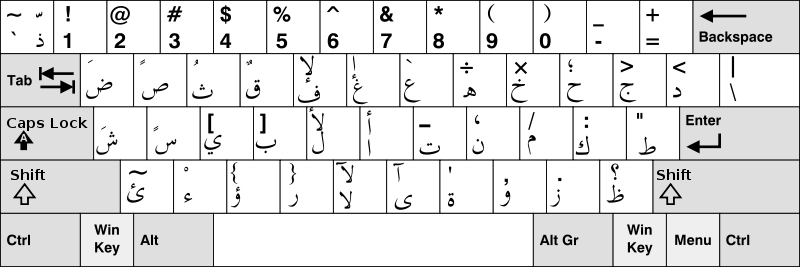
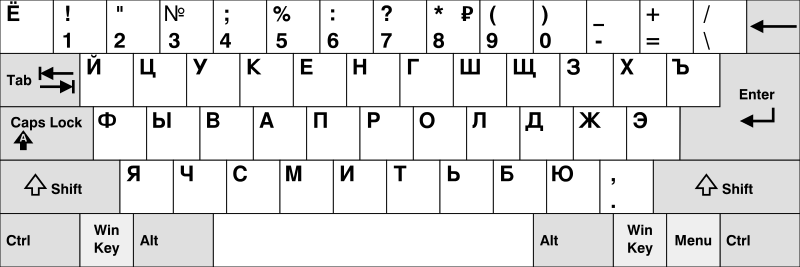
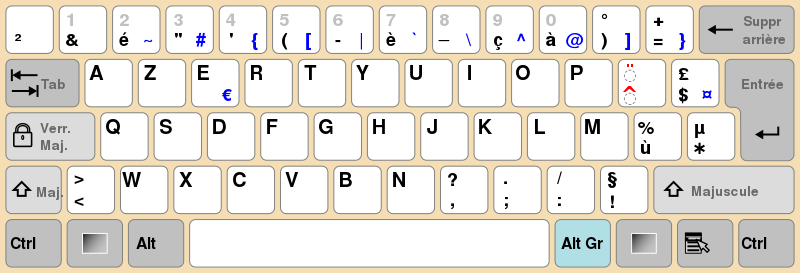
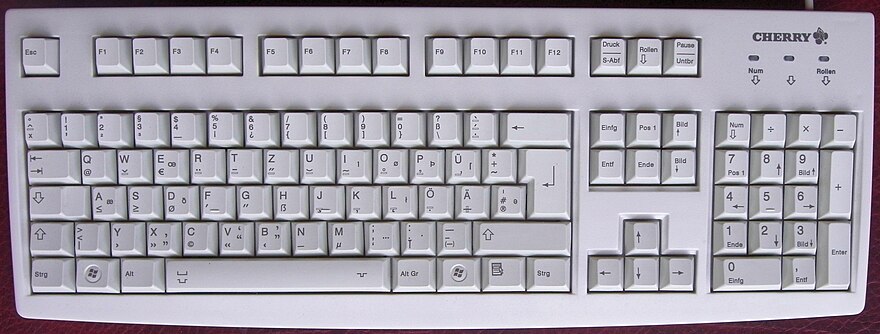
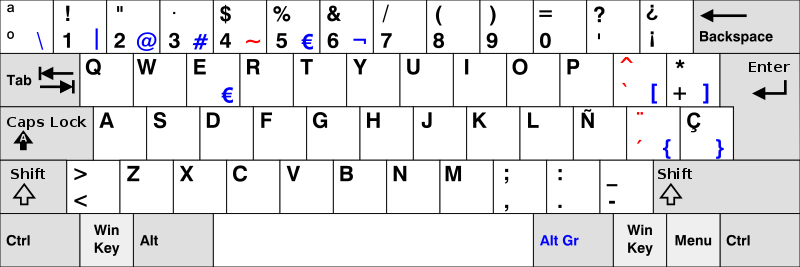
||~ input method||~ description|| ||arabic||Keys mapped in a manner popularized by the [http://upload.wikimedia.org/wikipedia/commons/thumb/a/af/KB_Arabic.svg/800px-KB_Arabic.svg.png IBM PC]. This keyboard places letters in the traditional locations used by Arabic typewriters. _ _ The positions of the letters must be memorized; there is no input method which allows someone who knows the Arabic letters and the QWERTY keyboard to predict the location of the letters.|| ||cyrillic-jcuken||[http://upload.wikimedia.org/wikipedia/commons/thumb/6/60/KB_Russian.svg/800px-KB_Russian.svg.png JCUKEN keyboard]. This is the most common keyboard layout in Russia.|| ||cyrillic-yawerty||Places letters where phonologically similar Latin letters are found on the QWERTY keyboard. Note the following substitutions: _ _ q:я w:в y:ы u:у [:ш ]:щ f:ф h:х j:й x:ь c:ц v:ж|| ||french-azerty||[http://upload.wikimedia.org/wikipedia/commons/thumb/b/b9/KB_France.svg/800px-KB_France.svg.png French AZERTY keyboard]. This is the most common keyboard layout in France.|| ||french-postfix||QWERTY keyboard. Use @@`@@ ‘ ^ “ after vowels to create accented vowels. Use , after c to create ce cedille. Use @@ << @@ and @@>>@@ to create guillemots.|| ||german||[http://upload.wikimedia.org/wikipedia/commons/thumb/b/b0/German-T2-Keyboard-Prototype-May-2012.jpg/880px-German-T2-Keyboard-Prototype-May-2012.jpg German QWERTZ keyboard]. This is the most common keyboard layout in Germany.|| ||german-posfix||QWERTY keyboard. Use ae, oe, ue, and sz digraphs to create the special letters.|| ||german-prefix||QWERTY keyboard. Use double quote “ before vowel to create umlaut. Use “ before s to create long s.|| ||greek||Places letters where the corresponding Latin letters are found on the QWERTY keyboard. Note the following substitutions: _ _ w:ς y:υ u:θ f:φ h:η j:ξ x:χ c:ψ v:ω _ _ Since 1982 modern Greek only uses the acute accent and the dieresis which can be entered with the ; (acute) and : (dieresis) prefixes. To enter a literal ; or : use q or Q. Use ;< or ;> for guillemots. _ _ Ancient Greek is written using the polytonic system which also has a grave accent, circumflex, and rough breathing mark. Unicode provides code points for letters marked with these diacritics, but there is no Emacs input method for them.|| ||japanese||QWERTY keyboard. Type in romanji and the characters are converted to kana on the fly. In a second pass some of the kana are converted to kanji on the fly.|| ||spanish-keyboard||A layout close to the layout used in [http://upload.wikimedia.org/wikipedia/commons/thumb/7/74/KB_Spanish.svg/800px-KB_Spanish.svg.png Spain] and Latin America.|| ||spanish-postfix||QWERTY keyboard. Use suffix ‘ ~ “ for accents. Double suffix (n~~ -> n~) to prevent accent. Use !/ and ?/ for upside down punctuation.|| ||spanish-prefix||QWERTY keyboard. Use prefix ‘ ~ “ for accents. Use ~! and ~? for upside down punctuation. Use ~< and ~> for guillemots.|| ||##white|@@____________________@@##|| ||
# toggle-input-method-note ++ [#toggle-input-method enable/disable input method]
Used to turn off or re-enable an input method.
# describe-input-method-note ++ [#describe-input-method describe input method]
Document for an input method. By default the current input method is described.
# help-note + [#help Help]
# show-key-binding-note ++ [#show-key-binding show key binding]
How to show the function invoked by a key.
vim:
In Vim the key is the only name for a function. Here is the notation to see the function bound to a control character:
To see the function bound to a command available in insert mode or visual mode:
code :help iCTRL-O :help vCTRL-] /code
emacs:
{{describe-key-briefly}} shows the function invoked by the key; {{describe-key}} shows the function and its documentation.
# browse-files-note + [#browse-files Browse Files]
# shell-note + [#shell Shell]
emacs:
Emac provides two modes for running external shells: {{shell-mode}} and {{term-mode}}.
{{shell-mode}} buffers behave more like Emacs edit buffers. It is possible to use the movement commands and the edit commands to change a previous command. Hitting RET then runs the modified version of the command. It is also possible to edit the results of the commands, which might be useful when cleaning up a shell session before sharing it. The arrow keys are interpreted by Emacs, but {{M-p}} and {{M-n}} to recall commands from the command history.
By default, the buffer is {{shell}}. Use {{C-u M-x shell}} to be prompted for a different name.
Commands which expect ANSI escape support do not work in a {{shell-mode}} buffer, e.g. fish, less, tmux, vi, or emacs itself. For such commands, one can use {{term-mode}}. We describe {{term-mode}} as it behaves when the 3rd party library {{multi-term.el}} is installed. {{multi-term.el}} has these advantages:
- Can create more than one terminal buffer.
- Control and Meta modified keystrokes are sent to Emacs instead of the terminal process.
- No toggle between line mode and character mode.
{{term-mode}} under {{multi-term.el}} has quirks that can be confusing. For example, {{M-DELETE}} is interpreted by Emacs and erases part of the current command in the buffer, yet the characters being erased have already been sent to the shell.
Here is a summary of how keystrokes are handled in {{shell-mode}} and {{term-mode}} with {{multi-term.el}} installed:
||~ ||~ shell-mode||~ term-mode w/ multi-term|| ||RET||current line to process||RET to process|| ||C-c C-c||C-c to process||C-c to process|| ||C-c KEY||C-c KEY to emacs||C-c KEY to emacs|| ||KEY||KEY to emacs||KEY to process|| ||M-KEY||M-KEY to emacs||M-KEY to emacs|| ||C-KEY||C-KEY to emacs||C-KEY to emacs||
# shell-buffer-note ++ [#shell-buffer open shell buffer]
# shell-cmd-note ++ [#shell-cmd execute shell command]
# region-to-shell-cmd-note ++ [#region-to-shell-cmd send region to shell command]
# doc-to-shell-cmd-note ++ [#doc-to-shell-cmd send document to shell command]
# grep-note + [#grep Grep]
vim:
After performing a {{grep}}, the {{:cw}} or {{:copen}} command can be used to open the matching lines in a quickfix buffer. The quickfix buffer can be used to navigate to locations in the source files.
Vim has a command called {{:vimgrep}} which can be used in place of {{:grep}}. {{:vimgrep}} is an internal command and hence it works on systems where {{:grep}} is not installed. It does not have any option flags, however.
Running {{:grep}} or {{:vimgrep}} puts the results in a single quickfix buffer and hence overwrites the results of a previous search. The variants {{:lgrep}} and {{:lvimgrep}} put the results in a quickfix buffer which is local to the current buffer. The commands for navigating a local quick fix buffer are different: {{:ln}}, {{:lp}}, {{:lnf}}, {{:lcl}}.
emacs:
Emacs provides commands for running {{grep}} and displaying the results in a {{grep-mode}} buffer. The advantage of displaying the results in {{grep-mode}} is that each match is a hyperlink pointing to the location of the match in its original file. {{grep-mode}} is a child mode of {{compilation-mode}}.
For the hyperlinks in {{grep-mode}} to work, the output of the {{grep}} must have file names and line numbers, which is why{{grep}} is invoked with the {{-nH}} flags.
When invoking {{M-x grep}}, Emacs provides the command that it is going to execute and lets the user edit it. The user must add the search term and the name of the files to search. The user can change the flags to search directories recursively, i.e.{{grep -r}}. The user can even use a different command entirely, such as a combination of {{find}} and {{xargs grep}}. The only difference between {{M-x grep}} and {{M-x find-grep}} is the default choice for the command and flags. These choices can be changed by setting the {{grep-command}} and {{grep-find-command}} variables.
There is a command line tool {{ag}} which can be used as a replacement for {{grep -r}} or {{find | xargs grep}}. It has simpler syntax for invocation, and will use version control ignore files such as {{.gitignore}} to select the files to be searched intelligently. To install {{ag}}, look for a package name such as {{thesilversearcher}} or {{silvesearcher-ag}}.
{{ag-mode}}, which must be installed, invokes {{ag}} with the correct arguments so that the matches can be displayed in an Emacs buffer. Whereas {{M-x grep}} and {{M-x find-grep}} use a single {{grep}} buffer and replace the results of a previous search, {{ag-mode}} will create a new buffer for each search.
# tags-note + [#tags Tags]
How to create emacs tags for all files in {{dir1}} and {{dir2}} with the suffix {{.rb}}:
code find dir1 dir2 -name ‘*.rb’ | xargs etags /code
# diff-note + [#diff Diff]
# git-note + [#git Git]
# compile-note + [#compile Compile]
# debug-note + [#debug Debug]
# lisp-interaction-note + [#lisp-interaction Lisp Interaction]
# syntax-highlighting-note + [#syntax-highlighting Syntax Highlighting]
# programming + [#top Programming]
||~ ||~ # variables[#vimscript vimscript]||||~ [#emacs-lisp emacs lisp]|| ||startup script||/.vimrc||/.emacs.d/init.el|| ||execute file||:source foo.vim||M-x load-file foo.el|| ||execute function|| ||M-: (foo) _ ##gray|//if interactively callable://## _ M-x foo|| ||execute command||normal x|| || ||set variable||let i = 1||(setq i 1)|| ||display variable||echo i||i|| ||delete variable||unlet i _ ##gray|//no error msg if doesn’t exist://## _ unlet! i|| || ||show variables||let|| || ||global variable||let g:foo = 42|| || ||script local variable||let s:foo = 42|| || ||window local variable||let w:foo = 42|| || ||file local variable|| || || ||buffer local variable||let b:foo = 42|| || ||end-of-line comment||echo 1 + 1 “ addition||(+ 1 1) ; addition|| ||||||~ # arith-logicarithmetic and logic|| ||~ ||~ vimscript||||~ emacs lisp|| ||falsehoods|| || || ||logical operators||&& @@||@@ !|| || ||relational operators||== != < > <= >=|| || ||conditional expression||x > 0 ? x : -x||(if (> x 0) x (- x))|| ||arithmetic operators||+ - * / %|| || ||float division of integers||n * 1.0 / m|| || ||||||~ # strstrings|| ||~ ||~ vimscript||||~ emacs lisp|| ||literal||"don’t say "no"” _ ‘don’’t say “no”’|| || ||escapes||##gray|//in double quote://## _ \n|| || ||concatenate||"Hello, “ . “World!”|| || ||length||strlen(“lorem”)|| || ||||||~ # listlists|| ||~ ||~ vimscript||||~ emacs lisp|| ||||||~ # dictdictionaries|| ||~ ||~ vimscript||||~ emacs lisp|| ||||||~ # funcfunctions|| ||~ ||~ vimscript||||~ emacs lisp|| ||define function||function Add(x, y) _ @< >@return a:x + a:y _ endfunction||(defun add (x y) (+ x y))|| ||invoke function||echo Add(1, 2) _ ##gray|//outside of expression://## _ call Add(1, 2)||(add 1 2)|| ||list udfs||function|| || ||delete function||delfunction Add|| || ||||||~ # exec-ctrlexecution control|| ||~ ||~ vimscript||||~ emacs lisp|| ||if||if i > 0 _ @< >@echo “i is positive” _ endif|| || ||while loop||while i < 10 _ @< >@echo “i is” i _ @< >@let i += 1 _ endwhile|| || ||for loop||for i in range(0, 9) _ @< >@echo “i is” i _ @< >@let i += 1 _ endfor|| || ||||||~ # lib-modlibraries and namespaces|| ||~ ||~ vimscript||||~ emacs lisp|| ||show load path||:set runtimepath?|| || ||append to load path|| || || ||load library||runtime foo.vim|| ||
# vimscript + [#programming Vimscript]
[http://vimdoc.sourceforge.net/htmldoc/usr_41.html Vim Documentation: usr_41]
# emacs-lisp + [#programming Emacs Lisp]
[http://www.gnu.org/software/emacs/manual/html_node/elisp/index.html Emacs Lisp]
# vim# emacs# nano# doc + [#top Documentation]
[http://vimdoc.sourceforge.net/htmldoc/usr_toc.html Vim documentation] [http://www.gnu.org/software/emacs/manual/html_node/emacs/index.html GNU Emacs Manual] [http://www.nano-editor.org/dist/v2.2/nano.html nano Command Manual]
# terminology + [#top Terminology]
key binding
A key binding is a mapping from a keystroke or a sequence of keystrokes to an editor command. When the keybinding is in effect, pressing the keystroke(s) invokes the command.
A keystroke is an operating system event generated when the user presses a key on the keyboard, possibly in combination with a modifier key such as shift, control, or meta.
Sometimes there is no key for meta. Emacs will interpret an ESC-followed-by-keystroke sequence as the meta modified version of the keystroke. In the past there were keyboards that had a key labelled Meta, such as the [http://upload.wikimedia.org/wikipedia/commons/4/47/Space-cadet.jpg keyboard used on Symbolics lisp machines]. On a PC keyboard one will usually use the Alt key as the Meta key. On a Mac keyboard one will use the Option key. It may be necessary to specify this mapping. In the Preferences of the Mac Terminal App, there is a checkbox under Settings and Keyboard.

In this document the notation C-x and M-x are used to denote control and meta modified keystrokes. This is the notation used in Emacs documentation. The nano documentation uses ^X and M-X. The Vim documentation uses CTRL-X and nothing for the meta modified keystrokes which are not used by Vim.
On PC and Mac keyboards the control key is in an awkward position. If one is willing to give up CAPS LOCK one can map that key to Control. On Windows make this edit to the registry:
code [HKEYLOCALMACHINE\SYSTEM\CurrentControlSet\Control\Keyboard Layout] “Scancode Map”=hex:00,00,00,00,00,00,00,00,02,00,00,00,1d,00,3a,00,00,00,00,00 /code
If the entry does not exist create it with REG_BINARY. A reboot is necessary.
On a Mac the remapping can be performed by going to {{System Preferences | Keyboard | Modifier Keys …}}
In Emacs, most control and meta modified keys are mapped to commands, but a few are prefixes. Prefixes permit mapping commands to multiple keystroke sequences. The normal prefixes are C-c, C-h, C-x, M-g, M-o, and M-s.
mode
A set of key bindings. //…and also variables which control how text in the buffer is displayed.//
In Emacs the mode is chosen automatically for each buffer when a file is opened for editing or viewing. There is usually no reason to change the mode unless Emacs chose the mode incorrectly.
In Vim the user switches between modes frequently during the course of editing a file. The most commonly used modes are normal mode, insert mode, visual mode, and cmdline mode.
buffer
A buffer is a sequence of characters which editors use to read file contents into memory. A change to a buffer is immediately rendered on screen if the portion of the buffer that was changed is currently visible.
Some buffers do not contain the contents of a file. Buffers can be used to display directory contents, help screens, error messages, or shell output.
In Emacs if a buffer is not associated with a file, it is given a name containing asterisks, e.g. {{scratch}}.
Emacs buffers which contain file contents take their name from the basename of the file. When there are buffer name collisions Emacs appends , , etc. to the ends of the buffer names. The {{uniqify}} library can change this behavior to use part of the full pathname instead.
window
The portion of a screen used to display a buffer. In Emacs the //mode line// and the //fringe// are considered part of the window.
An Emacs window is not synonymous with the windows provided by the GUI that Emacs is running in. Emacs calls GUI windows //frames//.
frame
When the editor is running as a GUI application, the frame is the entire canvas provided by the GUI window. When running as a text-mode application in a terminal, the frame is the entire display of the terminal.
Vim documentation calls the frame the //screen//.
mode line
A line at the bottom of a window with information about the buffer. In Emacs it has the buffer and major mode and minor modes currently in effect.
fringe
The left and right edge of the window.
In Emacs the fringe is used to indicate lines that were wrapped or truncated.
visible portion of the buffer
The portion of the buffer that is currently displayed in a window. Sometimes we will simply call this portion of the buffer the window.
echo area/minibuffer
An area at the bottom of the frame which Emacs used to display messages and accept arguments. When it is displaying a message it is called the echo area. When it is accepting an argument it is called the minibuffer. The minibuffer is used to enter a buffer name, a file name, a search term, the full name of an emacs command, a lisp expression, or a shell command.
Vim reserves the bottom of the frame for a similar purpose. When a : is typed, one enters command line mode and the line is called the command line. Commands which require an argument such as a file name usually must be entered on the command line. When not in command line mode Vim will sometimes messages on what the documentation calls the “bottom of the screen”. Some of these messages are equivalent to information that Emacs would display in the mode line, not echo area.
point (cursor)
The place in the buffer where characters will be inserted or commands will have effect.
mark (the other end of the selection)
When of the buffer is being selecting, it is defined by the current location of the point and an entity called the mark which was the location of the point when the selection process was started.
pane
frame
A GUI window owned by the editor when the editor is being run as a GUI application.
copy/paste/yank?
registers/kill ring
face
# line-editors + [#top Line Editors]
||~ ||~ vi ||~ ex||~ sed||~ ed|| ||insert text after current line. Use a line with single period . to exit input mode.||o||a ##gray|//or//## .a|| ||a ##gray|//or//## .a|| ||delete first line||:1d||1d||sed 1d||1d|| ||delete first 10 lines||:1,10d||1,10d||sed 1,10d||1,10d|| ||delete all lines after 10th||:11,$d||11,$d||sed ‘11,$d’||11,$d|| ||delete current line||:d ##gray|//or//## :.d||d ##gray|//or//## .d|| ||d ##gray|//or//## .d|| ||delete current and all later lines||:.,$d||.,$d|| ||.,$d|| ||switch to editing ##gray|//file//##, but warn if there are unsaved changes||:e ##gray|//file//##||e ##gray|//file//##|| ||e ##gray|//file//##|| ||switch to editing ##gray|//file//## unconditionally||:e! ##gray|//file//##||e! ##gray|//file//##|| ||E ##gray|//file//##|| ||insert text at front of current line. Use a line with a single period . to exit input mode.||O||i ##gray|//or//## .i|| ||i ##gray|//or//## .i|| ||append line 2 to the end of line 1||:1,2j||1,2j|| ||1,2j|| ||append following line to end of current line||J||j|| ||j|| ||print current line number and its contents|| || || ||n ##gray|//or//## .n|| ||print line numbers for lines 1 thru 10 and their contents. Also move to line 10|| || || ||1,10n|| ||display line numbers with lines||:set nu||set nu|| || || ||don’t display line numbers with lines||:set nu!||set nu!|| || || ||print first line and move to it|| ||1p||sed -n 1p||1p|| ||print line 10 and move to it|| ||10p||sed -n 10p||10p|| ||print lines 1,10 and move to line 10|| ||1,10p||sed -n 1,10p||1,10p|| ||quit, but warn if there are unsaved changed||:q||q|| ||q|| ||quit unconditionally||:q!||q!|| ||Q|| ||insert contents of ##gray|//file//## after line 10||:10r ##gray|//file//##||10r ##gray|//file//##|| ||10r ##gray|//file//##|| ||replace first occurrence of foo with bar on first line||:1s/foo/bar/||1s/foo/bar/||sed 1s/foo/bar/||1s/foo/bar/|| ||replace all non-overlapping occurrences of foo with bar on first line||:1s/foo/bar/g||1s/foo/bar/g||sed 1s/foo/bar/g||1s/foo/bar/g|| ||replace foo with bar on first ten lines||:1,10s/foo/bar/||1,10s/foo/bar/||sed 1,10s/foo/bar/||1,10s/foo/bar/|| ||replace foo with bar on current line||:s/foo/bar/||s/foo/bar/|| ||s/foo/bar/|| ||insert a copy lines 1 thru 10 after line 20||:1,10t20||1,10t20|| ||1,10t20|| ||undo; in ed 2nd invocation undoes the first; vim and ex keep history||u||u|| ||u|| ||write all lines to ##gray|//file//##||:w ##gray|//file//##||w ##gray|//file//##|| ||w ##gray|//file//##|| ||write lines 1 thru 10 to ##gray|//file//##||:1,10w ##gray|//file//##||1,10w ##gray|//file//##|| ||1,10w ##gray|//file//##||
Vim has a built-in line editor called ex. Editing in ex mode is like running commands in cmdline mode with the colon :. The only difference is that in ex mode one does not return to normal mode after a command finishes.
One can switch to the line editor with the command {{Q}}. Once in the line editor the line editing commands can be issued without the preceding colon. If vim is launched using the name {{ex}} then it goes immediately into the line editor. The command {{vi}} switches back to the visual editor.
A line editor such as {{ex}} or {{ed}} is the only way to edit a file when working in a terminal which does not support redrawing the screen.
{{ed}} is the only way to edit files on ancient versions of Unix such as [http://pdp11.aiju.de/ Version 6]. {{ed}} may be the only editor installed in a resource constrained environment: the Ubuntu vim executable is 1.8M and the {{ed}} executable is 48k.
The stream editor {{sed}} can be used to apply line editing commands to files at the command line.
# bindings-other-apps + [#top Vim Bindings in Other Applications]
||~ ||||~ Shells||~ Pagers||||~ Multiplexer Copy Mode|| ||~ ||~ bash||~ zsh||~ less||~ screen||~ tmux|| ||page down|| || ||C-f|| || || ||page half down|| || ||C-d|| || || ||page up|| || ||C-b|| || ||
This command gives Bash Vim-style bindings when editing a command:
This command gives Zsh Vim-style bindings:
- [#top Emacs Bindings in Other Applications]
||~ ||||~ Shells||~ Pagers||||~ Multiplexer Copy Mode||||||~ Browser Textareas||||||~ IDEs|| ||~ ||~ Bash||~ Zsh||~ less||~ screen||~ tmux||~ Chrome (Mac)||~ Firefox (Mac)||~ Safari (Mac)||~ Xcode||~ Visual Studio||~ Eclipse (Mac)|| ||move to beginning of line||C-a||C-a|| || || ||C-a||C-a||C-a||C-a||C-a||C-a|| ||move forward char||C-b||C-b|| || || ||C-b||C-b||C-b||C-b||C-b||C-b|| ||delete forward char||C-d||C-d|| || || || ||C-d|| || ||C-d||C-d|| ||move to end of line||C-e||C-e|| || || ||C-e||C-e||C-e||C-e||C-e||C-e|| ||move backward char||C-f||C-f|| || || ||C-f||C-f||C-f||C-f||C-f||C-f|| ||##gray|//delete backward char//##|| || || || || ||##gray|//C-h//##|| ||##gray|//C-h//##||##gray|//C-h//##|| || || ||##gray|//insert tab//##|| || || || || ||##gray|//C-i//##|| ||##gray|//C-i//##|| || || || ||delete to end of line||C-k||C-k|| || || ||C-k||C-k||C-k||C-k||C-k||C-k|| ||move to next line|| || ||C-n|| || ||C-n||C-n||C-n||C-n||C-n||C-n|| ||open line|| || || || || ||C-o|| ||C-o||C-o||C-o|| || ||move to previous line|| || ||C-p|| || ||C-p||C-p||C-p||C-p||C-p||C-p|| ||reverse search ##gray|//of command history//##|| ||C-r|| || || || || || || || || || ||##gray|//submit form//##|| || || || || ||##gray|//C-s//##|| ||##gray|//C-s//##|| || || || ||transpose characters||C-t||C-t|| || || ||C-t|| ||C-t||C-t||C-t|| || ||page down|| || ||C-v|| || ||C-v|| ||C-v||C-v||C-v||C-v|| ||page up|| || ||M-v|| || || || || || ||M-v||M-v|| ||yank||C-y||C-y|| || || ||C-y|| ||C-y||C-y||C-y||C-y|| ||move backward word||M-b||M-b|| || || || || || || ||M-b||M-b|| ||move forward word||M-f||M-f|| || || || || || || ||M-f||M-f|| ||delete backward char||DEL||DEL|| || || || || || || ||DEL||DEL|| ||delete backward word||M-DEL||M-DEL|| || || || || || || ||M-DEL||M-DEL|| ||delete forward word||M-d||M-d|| || || || || || || ||M-d||M-d||
To get Emacs style bindings in Visual Studio, one must go to the {{Tools | Options… | Environment | Keyboard}} section and set the additional keyboard mapping scheme to Emacs.
To get Emacs style bindings in Eclipse, one must go to {{Preferences | General | Keys}} and set the Scheme to Emacs.